Help
Use LeashTracker on iPhone, iPad or a computer
There's no LeashTracker app in the App Store yet, but you don't have to wait. LeashTracker also runs in your browser at app.leashtracker.nl. It's the same app, with the same household, walks and leaderboard as on Android.
Open the web app
Go to app.leashtracker.nl. Log in, create a household, or join your family's household with their invite code. Family members on Android keep using the Play Store app; you all see the same walks.
Joining a household? Copy the invite code first. You need it when you create your account.
On iPhone or iPad: add it to your Home Screen
From your Home Screen, LeashTracker opens full screen like an app and can send you notifications. Safari is easiest, but Chrome, Edge and Firefox work too.
-
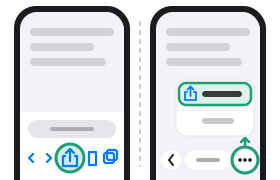
Open app.leashtracker.nl in Safari and tap the Share button: the square with an arrow pointing up. On iPhone it's at the bottom of Safari, on iPad at the top right. Only see ⋯ there? Tap ⋯ first, then Share.
-
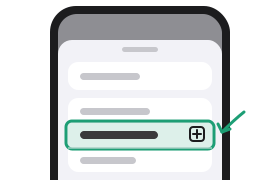
Scroll down and tap Add to Home Screen. Not in the list? Tap View More first.
-
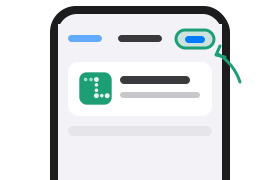
Leave Open as Web App switched on if you see it, and tap Add at the top right.
-
Open LeashTracker from your Home Screen, then log in or join your household there.
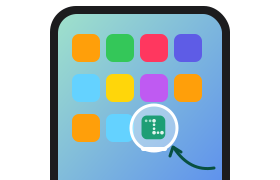
Chrome, Edge and Firefox work too: open the browser's Share menu and look for Add to Home Screen.
Good to know
- Its own login. The Home Screen app doesn't take over your login or invite code from Safari. Copy the invite code before you add it, and log in again in the Home Screen app.
- Notifications need iOS or iPadOS 16.4 or later. Turn them on in the app under Settings → Preferences → Notifications.
- GPS walk tracking stops when the screen turns off.
- No connection? Walks you log offline are sent the next time you open the app.
- Plus is bought and managed in the Android app, not on the web. If your household has Plus, you have it in the web app too.
On a computer
LeashTracker works in any modern browser. In Chrome or Edge you can also install it as an app, so it opens in its own window: use the Install button in the app, or your browser's menu (Install LeashTracker).
On Android
Use the app from Google Play. It does the most: notifications, the home screen widget and walk tracking. See getting started in the user guide.